Contributing to Models
Meshery Models are schema-driven. Model definitions, including their structure, metadata, and versioning, are defined by JSON Schemas in the meshery/schemas repository. Before contributing to models, familiarize yourself with the Model schema and see Contributing to Schemas for the development workflow.
Understanding the internals of Meshery’s logical object model
Meshery uses a logical object model to describe the infrastructure and capabilities it manages in a consistent and extensible way.
What Are Meshery Models?
At the core of this system are Meshery Models — packages that define a specific type of infrastructure, application, or capability. These models include:
- Components: Individual parts of a system (e.g., services, databases).
- Relationships: How those parts interact.
- Metadata: Visual and behavioral traits, such as icons or capabilities.
Models can describe traditional technologies (like Kubernetes workloads), or more abstract entities (like annotations or diagrams).
Learn more: What are Meshery Models?
What Is the Model Schema?
Each model includes a set of entities (in the form of definitions) that Meshery can manage. Models are defined and versioned using the Model Schema.
The schema defines the structure of the model, including the entities it contains, their relationships, and the properties they have. The schema also defines the version of the model and the version of the schema itself.
See Registry to learn more about Meshery’s internal registry and how to use it.
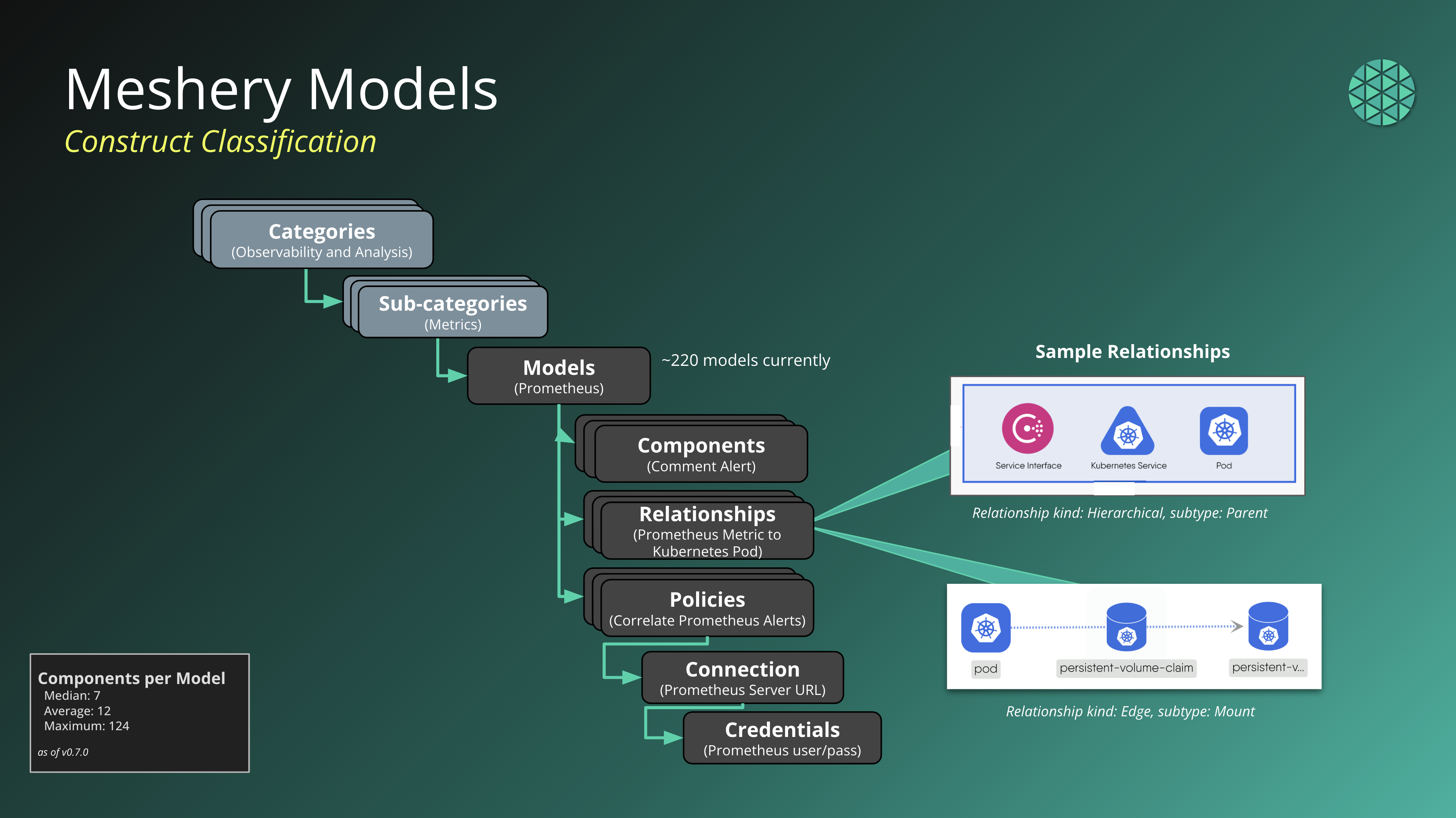 Figure: Model Entity Classification
Meshery Entities and their Lifecycle
This section aids in your understanding of the vernacular of Meshery’s internal object model and discusses the difference beteween schemas, definitions, declarations, and instances. The lifecycle of Meshery entities (components, relationships, policies) is represented by the following terms, which are used to describe the various stages of their lifecycle.
Schema
Schema (static) : the skeletal structure representing a logical view of the size, shape, characteristics of a construct.
The schema represents the skeletal structure of an entity and provides a logical view of its size, shape, and characteristics. It defines the expected properties and attributes of the entity. The schema serves as a blueprint or template for creating instances of the entity. It is a static representation that defines the structure and properties but does not contain specific configuration values.
Schema example
Component schema excerpt
 {
"$id": "https://schemas.meshery.io/component.json",
  "$schema": "",
"description": "Components are the atomic units for designing infrastructure. Learn more at ",
"required": [
"apiVersion",
"kind",
"schema",
"model"
],
"additionalProperties": false,
"type": "object",
"properties": {
"apiVersion": {
"type": "string",
"description": "API Version of the component."
},
"kind": {
"type": "string",
"description": "Kind of the component."
.
.
.
Definition
Definition (static) : An implementation of the Schema containing an outline of the specific attributes of a given, unconfigured entity.
A definition is an implementation of the schema. It contains specific configurations and values for the entity at hand. The definition provides the actual configuration details for a specific instance of the entity. It is static because it is created based on the schema but does not change once created. The definition is used to instantiate declarations of the entity.
Definition example
a generic, unconfigured Kubernetes Pod.Declaration
Declaration (static) : - A configured entity with detailed intentions of a given Definition.
Declaration example
NGINX container as a Kubernetes Pod with port 443 and SSL termination.Instance
Instance (dynamic) : A realized entity (deployed/discovered); An instantiation of the declaration.
An instance represents a realized entity. An instance is a dynamic representation that corresponds to a deployed or discovered instantiation of a declaration. An instance is created based on its corresponding definition and represents an actual running or deployed version of the entity within the environment.
Instance example
NGINX-as234z2 pod running in a cluster as a Kubernetes Pod with port 443 and SSL termination.Capabilities
Capabilities: Capabilities are used to describe the operations that a model supports.
Models use capabilities to describe the operations which they support, such as styling, configurations, interactions, and runtime behavior. Entities may define a broad array of capabilities, which are in turn dynamically interpreted by Meshery for full lifecycle management.
To simplify the assignment of these capabilities, Meshery organizes these capabilities into reusable and assignable sets, such as:
- Default Set:
A foundational set covering configuration (
Workload Configuration,Labels and Annotations), UI interaction (Styling,Change Shape,Compound Drag and Drop), and component introspection (Relationships,Json Schema). - Shapes:
Visual components with layout and appearance-related capabilities. Includes
Styling,Change Shape,Compound Drag and Drop, andBody Text. - Comment: Annotation-like elements with light interaction. Similar to Shapes, but focused on non-functional overlays.
- Ghost: Lightweight visual components with minimal styling. Typically lacks body text or complex interactions.
- Shapes without Text:
Variant of Shapes, omitting
Body Textto support simpler block structures. - Component with Logging and Terminal Session Support:
Extends the Default set with operational capabilities like
Performance Test,Interactive Terminal, andStream Logs. - Container Alias: Alias components that simulate real workloads, combining configuration, view, and operational capabilities.
Individual Capabilities
| Capability | Description | Kind |
|---|---|---|
| Performance Test | Initiate a performance test. Meshery will execute the load generation, collect metrics, and present the results. | action |
| Workload Configuration | Configure the workload specific setting of a component. | mutate |
| Labels and Annotations Configuration | Configure Labels And Annotations for the component. | mutate |
| Relationships | View defined relationships for the component. | view |
| Json Schema | View the underlying JSON Schema definition of the component. | view |
| Styling | Configure the visual styles for the component. | mutate |
| Change Shape | Change the shape of the component. | mutate |
| Compound Drag and Drop | Drag and Drop a component into a parent component in graph view. | interaction |
| Body Text | Add textual content within the body of a node. | mutate |
| Show Label | Display label text associated with a node (similar to Body Text). | view |
| Resolve Component | Mark the status of a component as resolved. | mutate |
| Interactive Terminal | Initiate a terminal session. | action |
| Stream Logs | Initiate log streaming session. | action |
Capabilities Schema example
Capabilities schema excerpt
 {
"$id": "https://schemas.meshery.io/capability.json",
"$schema": "http://json-schema.org/draft-07/schema#",
"description": "Meshery manages entities in accordance with their specific capabilities. This field explicitly identifies those capabilities largely by what actions a given component supports; e.g. metric-scrape, sub-interface, and so on. This field is extensible. Entities may define a broad array of capabilities, which are in-turn dynamically interpretted by Meshery for full lifecycle management.",
"additionalProperties": false,
"type": "object",
"required":
.
...
.
"kind": {
"description": "Top-level categorization of the capability",
"additionalProperties": false,
"anyOf": [
{
"const": "action",
"description": "For capabilities related to executing actions on entities. Example: initiate log streaming on a Pod. Example: initiate deployment of a component."
},
{
"const": "mutate",
"description": "For capabilities related to mutating an entity. Example: the ability to change the configuration of a component."
},
.
.
.
Importing and Creating Models
Models can be created from scratch or imported using either the Meshery UI or the Meshery CLI.
To learn more, see the detailed guides on Importing Models and Creating Models.
Use Create if you’re starting from scratch. Use Import if you already have model definitions (e.g., JSON, CSV, tar).
Model Generation from Schemas
Meshery automatically generates models and components by parsing schemas from various sources. While Kubernetes Custom Resource Definitions (CRDs) are a common source, Meshery can create components from any valid schema definition.
Component Grouping into Models
When generating components, Meshery processes input schemas and automatically organizes them into Models. This grouping process logically binds related components together based on their source.
Source-Based Grouping:
Components are grouped based on their origin—such as a specific GitHub repository, Helm chart, or Kubernetes cluster. For example:
- Importing a Helm chart for Prometheus from ArtifactHub creates a “Prometheus” Model containing all resources defined in that chart (Services, Deployments, ConfigMaps, etc.) as components
- Connecting to a Kubernetes cluster creates a “Kubernetes” Model containing all discovered CRDs as components
- Importing from a GitHub repository creates a model named after the repository
Metadata Preservation:
For Kubernetes CRDs, the spec.group field is extracted and stored as part of each component’s API version (e.g., networking.k8s.io/v1). This metadata is preserved but does not determine model assignment for direct imports.
Component Generation Behavior
When Meshery processes schemas:
- Parsing: The source is parsed to extract schema specifications for every entity.
- Component Creation: A component definition is generated for each entity, capturing its kind, version, and schema.
- Model Assignment: Components are automatically assigned to a Model based on their source context.
- Registration: Components are registered in Meshery’s Registry under their respective model.
- Enrichment: Components inherit default properties from their model and can be further customized.
This automatic grouping allows you to manage related resources as cohesive units within Meshery designs.
Advanced: Grouping by API Group (CSV Imports)
When importing models via CSV or Google Spreadsheet, you can optionally specify a group field to filter which CRDs are included based on their spec.group value. This filtering capability is specific to CSV/spreadsheet imports and is not available for direct imports from GitHub repositories, ArtifactHub packages, or live Kubernetes clusters.
How Group Filtering Works:
During CSV import, if you specify a group value in your model definition, Meshery will only process CRDs whose spec.group field matches the specified value. This allows you to create focused models containing only components from a specific Kubernetes API group.
- With a group specified: Only CRDs matching the
spec.groupvalue are processed - Without a group specified (empty field): All CRDs from the source are processed
Example:
In the CRD below, the spec.group field has the value cloudquota.cnrm.cloud.google.com:
CSV Model Definition Example:apiVersion: apiextensions.k8s.io/v1 kind: CustomResourceDefinition metadata: annotations: cnrm.cloud.google.com/version: 1.140.0 name: apiquotaadjustersettings.cloudquota.cnrm.cloud.google.com spec: group: cloudquota.cnrm.cloud.google.com # API group used for filtering names: kind: APIQuotaAdjusterSettings plural: apiquotaadjustersettings scope: Namespaced versions: - name: v1beta1 schema: openAPIV3Schema: properties: apiVersion: type: string kind: type: string
model,group,category,modelDisplayName,registrant
gcp-cloudquota,cloudquota.cnrm.cloud.google.com,Cloud Native Network,GCP Cloud Quota,artifacthub
When this CSV is imported with associated CRD files, only CRDs from the cloudquota.cnrm.cloud.google.com API group will be included as components in the “gcp-cloudquota” model.
CSV Import Only
Group filtering is only available when importing via CSV or Google Spreadsheet. For all other import methods (GitHub repositories, ArtifactHub/Helm packages, or live Kubernetes clusters), all available resources are processed and organized into models based on their source.When to Use Group Filtering:
Group filtering is useful when:
- You want to create separate models for different API groups from the same source
- You’re working with a large collection of CRDs and need to organize them by Kubernetes API group
- You need fine-grained control over which CRDs are included in a specific model
For most use cases, the automatic source-based grouping is sufficient and requires no additional configuration.
Post Model Generation
During model generation, corresponding components are created. Next step is to enrich these component details and define their capabilities and relationships.
Enrich Component Details When a Component is initially generated, a new Component definition is created with default properties (e.g. colors, icons, capabilities, etc.), some of which are inherited from their respective Model.
1.1. Customize Shapes and Colors
- Default shape for new components is a circle
- Consider enriching components’ details based on what they represent
- Reference Cytoscape node types for possible shapes
- Example: Use a pentagon shape to represent a Deployment
- Know more about components shapes and colors
1.2. Customize Icons
- Components inherit the icon (colored and white SVGs) of their respective Model by default
- Propose specific icons best suited to visually represent each component
- Example: Use a skull icon for a DaemonSet
1.3. Review Capabilities
- Review and confirm assigned capabilities
- Modify capabilities as needed
See the Contributing to Components for detailed instructions.
Identify Relationships
2.1. Review Available Types Review and familiarize yourself with the predefined relationship kinds, types, and subtypes. See [“Relationships logical concepts”]({{ site.baseurl }}/concepts/logical/relationships)
2.2. Map Component Relationships
- Identify appropriate relationships for your new components
- Consider how components relate to others within the same model
- Consider relationships with components in other models
2.3. Create Definitions Codify the relationships you have identified into a Relationship Definition
See the Contributing to Relationships for detailed instructions.
Next Steps
The Meshery team is currently working on the following:
- Extending the model to support additional entities
- Improving the tooling for working with models
- Defining relationships between components and embedding those policies within models
We encourage you to get involved in the development of Meshery Models and to share your feedback!